Overview
The svv.visualize.gui module provides an interactive, dockable interface for configuring and visualizing
synthetic vascularization inside a tissue Domain. It is designed for exploratory workflows where you want to
iterate quickly on start points, parameters, and layout before automating runs in Python.
On this page
What The GUI Can Do
- Load and inspect domains: open
.dmn,.vtu,.vtp, or.stlfiles and explore them in a 3D viewport. - Define start points: pick points directly on the domain surface or enter coordinates manually (supports multiple networks/trees).
- Optional growth directions: attach a direction vector to a selected start point and visualize it as an arrow.
- Generate vascular objects: grow a single Tree or a multi-network Forest, with forest competition and per-tree overrides.
- CAD-style scene control: show/hide the domain, points, and (for forests) individual networks/trees from the Model Tree.
- Export for downstream use: centerlines (
.vtp), solids (STL/VTU), connected-forest splines (text), and 0D/3D simulation setup files. - Inspect time-varying results: open the dockable Solution Inspector for simulation solution visualization (when available).
How To Navigate The Interface
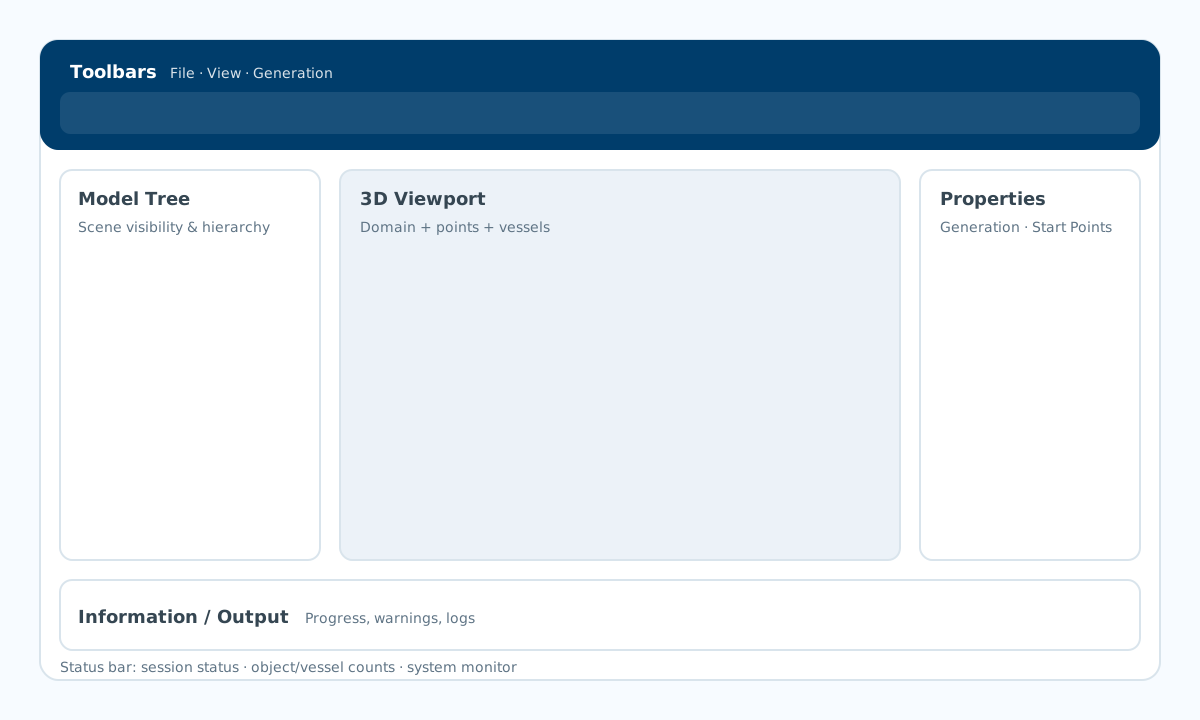
Layout At A Glance
- Central viewport: the 3D scene (domain mesh + start points + generated vessels).
- Model Tree (left): a scene browser with visibility checkboxes (use it to isolate networks/trees).
- Properties (right): the primary control panel with tabs for Generation and Start Points.
- Information (bottom): progress + logs (hidden by default; can be shown from View → Panels).
- Status bar (bottom edge): session status, object/vessel counts, and a small system monitor.
3D Viewport Controls
The viewport uses standard PyVista/VTK camera navigation:
| Action | Mouse / Key |
|---|---|
| Rotate (orbit) | Left-drag |
| Pan | Right-drag, or Shift + left-drag |
| Zoom | Mouse wheel, or middle-drag |
| Re-center the camera | Use the View toolbar (Fit / Iso / Top / Front / Right) |
If the camera feels “lost”, use Fit to bring the full domain and vasculature back into view. You can also toggle visual aids like Grid, Domain, Domain Edges, and the Scale Bar from the View toolbar/menu.
Navigation Icons (View Toolbar)
The View toolbar provides quick camera presets and visibility toggles. These are the icons you’ll use most for navigation:
| Icon | Action | Shortcut | Notes |
|---|---|---|---|
 |
Fit | V, F |
Re-center the camera to frame all visible objects. |
 |
Iso | V, I |
Isometric view (a good default for overall orientation). |
 |
Top | V, T |
Top-down view. |
 |
Front | V, 1 |
Front view. |
 |
Right | V, 3 |
Right-side view. |
 |
Domain | D |
Show/hide the domain mesh. |
 |
Grid | G |
Show/hide the reference grid behind the scene. |
 |
Scale Bar | S |
Show/hide the viewport scale bar (uses the current length unit). |
Key Panels
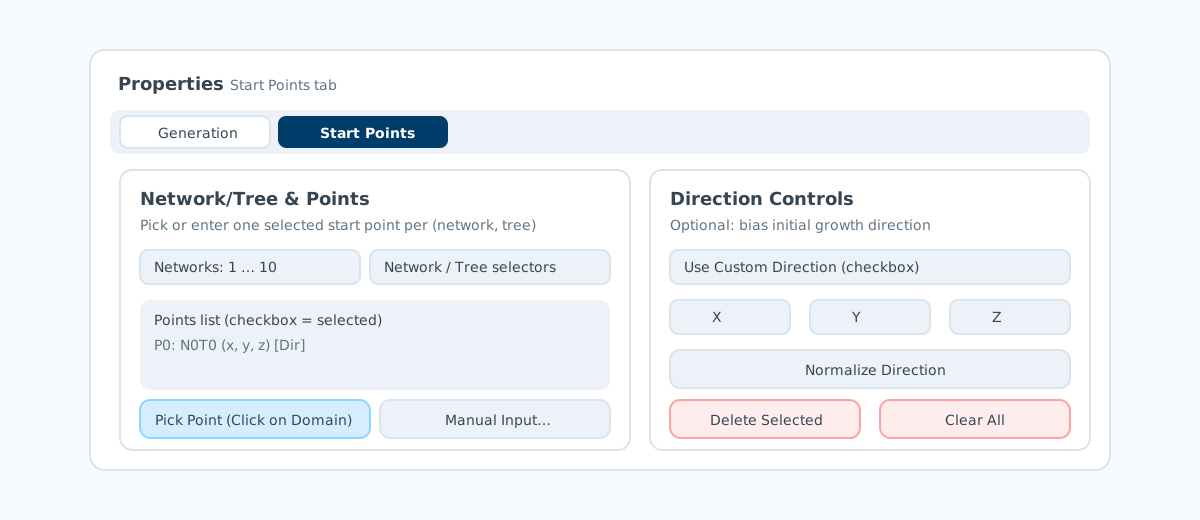
- Start Points tab: choose a (Network, Tree) slot, then add a point by picking on the domain or via manual entry; optionally enable a custom direction and normalize it.
- Generation tab: switch between Tree vs Forest mode, tune parameters (vessel count, clearance, unit system, seed, competition), then click Generate Tree/Forest.
- Model Tree: toggle visibility of the domain, start points, and generated objects; in forest mode, you can hide/show per-network and per-tree actors.
- Information / Output: check progress and warnings during longer tasks like loading, generation, connecting forests, and exports.
Menus You’ll Use Most
- File: Open domain, Save start-point configuration (JSON), Save Domain (
.dmn), Save Tree/Forest (.tree/.forest). - View: camera presets, visibility toggles, show/hide panels and toolbars, save/reset layout.
- Fabricate: export centerlines/solids/splines for CAD, meshing, or fabrication workflows.
- Simulate: build a constrained tissue mesh, export 0D/3D simulation setup files, or open the Solution Inspector.
Typical Workflow
Build Constrained Tissue Mesh uses the standalone TetGen executable bundled with release wheels to retain sampled centerline points as mesh nodes. For an older wheel or a source installation reporting a missing executable, follow the TetGen installation guidance.
- Load a domain: File → Open to load a domain/mesh.
- Add start points: open the Start Points tab and pick points on the domain (and optional directions).
- Set parameters: use the Generation tab to choose Tree vs Forest mode and tune the generator.
- Generate: click Generate Tree/Forest and inspect the result in 3D; use the Model Tree to isolate parts of the scene.
- (Forest) Connect: if needed, connect trees into a network (then export connected splines).
- Export: use Fabricate and Simulate menus to write geometry and simulation inputs.
python -m svv.visualize.gui
python -m svv.visualize.gui --domain path/to/domain.dmn
If point-picking does not work, ensure the domain was created/solved/built before loading.
If importing the GUI fails with _ARRAY_API not found or numpy.core.multiarray failed to import, recreate the environment with a NumPy version supported by your Python version. On Python 3.9–3.12, use python -m pip install --force-reinstall "numpy<2" svv. Python 3.13 requires NumPy 2.1 or newer; use python -m pip install --force-reinstall "numpy>=2.1" svv.